Wednesday, October 12, 2005

Exporting Table into a Backend Database

1. Create first the following function:

Function PutTableOnBackEnd(DBName As String, TblName As String, DestinationTable As String) As Boolean

'DBName should include full path and name of back end database
Dim Db As Database
'test back end

On Error Resume Next

Set Db = OpenDatabase(DBName)

If Err <> 0 Then

'failed to open back end database

Exit Function

End If

If Not Db Is Nothing Then Db.Close

'test if table is local

If IsNull(DLookup("Type", "MSysObjects", "Name='" & TblName & "' AND Type=1")) Then

'table is not local

Exit Function

End If

'put table on back end
'DoCmd.TransferDatabase acExport, "Microsoft Access", DBName, acTable, TblName, TblName

DoCmd.TransferDatabase acExport, "Microsoft Access", DBName, acTable, TblName, DestinationTable

If Err <> 0 Then GoTo Done

'link to the back end table
'DoCmd.DeleteObject acTable, TblName
'DoCmd.TransferDatabase acLink, "Microsoft Access", DBName, acTable, TblName, TblName

PutTableOnBackEnd = True 'defaults to false if it fails to get here

Done:

End Function

2. Specify the Tables to Export:

Tables to Export

TableID

TableName

Directory

BackEndDB

1

API Control Table

\\zwnwb080\groups\API_UPDATES\API\Upload

BackEnd.mdb

2

APIData Table

\\zwnwb080\groups\API_UPDATES\API\Upload

BackEnd.mdb

3

Unused ControlNo Table

\\zwnwb080\groups\API_UPDATES\API\Upload

BackEnd.mdb


3. Call the Function in a command button of a form:


Private Sub CMD_ExportTable_Click()

Dim Result As Boolean
Dim strPC As String
Dim SourceTable As String
Dim DestTable As String
Dim strDirectory As String
Dim BackEndDB As String

strPC = Me.TxtPCName

For i = 1 To 3

‘Specify the Table Names

SourceTable = DLookup("[TableName]", "Tables to Export", "[TableID] =" & i)

DestTable = strPC & "-" & SourceTable 'Here I attached the PC Name for Record Purposes

strDirectory = DLookup("[Directory]", "Tables to Export", "[TableID] =" & i)

BackEndDB = DLookup("[BackEndDB]", "Tables to Export", "[TableID] =" & i)

‘Call the Function

Result = PutTableOnBackEnd(strDirectory & "\" & BackEndDB, SourceTable, DestTable)

Debug.Print Result

MsgBox ("Finish exporting " & SourceTable)

Next i

End Sub


Saturday, October 08, 2005

Compacting Access Db at specified time

How to Compact Databases at a Scheduled Time url REFERENCE: http://support.microsoft.com/?id=158937

Thursday, October 06, 2005

INCREMENTAL NUMBERING SYSTEM

INCREMENTAL NUMBERING SYSTEM

SCENARIO: A certain table called API Temp Data needs to have an incremented numbering on ItemNo field. If we use autonumbering we cannot have multiple users entering at the same time in a given table. One item entered may contain number 1 by one user and the other user my have it’s entered item numbered as 2. In order to facilitate the automated numbering system starting with 1 with each user without using the autonumber of MS Acces is to create a procedure that will do the trick for you.

PROCEDURE:

The following is a portion of the procedure in the submit Record click event.

’***START Of INS Procedure

’***Programmer: Noel Jerome Q. Noel

‘***Contact: noeljltd@hotmail.com

‘1. Count the number of Records based on the ControlNo that is in the Form

RecCount = Nz(DCount("[ControlNo]", "Temp APIData", "[ControlNo]='" & Me.TxtControlNumber & "'"), 0)

‘2. If Record <> to zero then proceed to CallLoop

If RecCount <> 0 Then

GoTo CallLoop

Else

Me.TxtMultiTicketCounter.Value = 0

GoTo ExitingBasketProcedure

End If

CallLoop:

‘3. Set a Variable for the RecordSet you need to update

Set APITempDB = CurrentDb.OpenRecordset("SELECT * FROM [Temp APIData] WHERE ControlNo = '" & Me.TxtControlNumber & "'")

‘4. Initialize a counter called A

A = 1

‘5. Create a Loop Statement that will cycle through the recordset until the end of File

Do Until APITempDB.EOF

With APITempDB

.Edit

‘6. Each cycle updates ItemNo with counter A

!ItemNo = A

.Update

.MoveNext

End With

‘7. Counter A is incremented by 1

A = A + 1

Loop

‘8. Close the Recordset

APITempDB.Close

Me.TxtMultiTicketCounter.Value = RecCount

’***END Of INS Procedure

CHECKING CHARACTER FOR INTEGER OR STRING

CHECKING CHARACTER FOR INTEGER OR STRING

SCENARIO: A controlNo for inventory is formatted like:

1. For Multi Ticket = M05-00001

2. For Single Ticket = S05-00001

In order for the user not to enter a different format each character should be validated if they qualify as integer or String.

Here is the procedure in the AfterUpdate of the TxtControlNo Unbound Textbox:

The following procedure cycles through the series of characters in a textbox

'***Start of character Check for ControlNo String
’***Programmer: Noel Jerome Q. Noel

‘***Contact: noeljltd@hotmail.com

Dim X As Integer, i As Integer, intClength As Integer

Dim intSuffix As Long, NumCheck As Variant, ControlCheck As Variant

Dim RControlNo As String, StringConvert As String, StringCheck As String

intClength = Len(Me.TxtControlNumber)

X = 0

For i = 1 To intClength

RControlNo = Right(Me.TxtControlNumber.Value, intClength - X)

ControlCheck = Left(RControlNo, 1)

NumCheck = Nz(Val(ControlCheck), 0)

StringConvert = Str(NumCheck)

StringCheck = Right(StringConvert, Len(StringConvert) - 1)

If ControlCheck <> StringCheck Then

VarCheckType = "StringVar"

Else

VarCheckType = "IntegerVar"

End If

Select Case i

Case 1 'First Character should be string

If VarCheckType <> "StringVar" Then

prompt = MsgBox("You have entered a number instead of text on Character 1 of your ControlNo.", vbOKOnly, "Warning!!!")

Me.TxtControlNumber.Value = Null

Exit Sub

End If

Case 4 '4th Character should be a dash "-" string

If ControlCheck <> "-" Then

prompt = MsgBox("Character 4 of your ControlNo should be a dash '-' string. Change your ControlNo.", vbOKOnly, "Warning!!!")

Me.TxtControlNumber.Value = Null

Exit Sub

End If

Case Else 'Other Characters should be integer

If VarCheckType <> "IntegerVar" Then

prompt = MsgBox("You have entered a text instead of number on Character " & i & " of your ControlNo.", vbOKOnly, "Warning!!!")

Me.TxtControlNumber.Value = Null

Exit Sub

End If

End Select

X = X + 1

Next i

Tuesday, October 04, 2005

Increment Values in query

Reference:

global IncrementVariable as Long

function IncrementValues(i) as Long
IncrementVariable = IncrementVariable + 1
IncrementValues = IncrementVariable
end function

Note that it's necessary to pass a value to the function in order to have it count for each record. If you don't include this piece then you'll likely get a lot of 1's in every row instead of the counting result you'd like to see.

SELECT ... IncrementValues([any_field]) ...

You can futher customize this function, the following code with start over at 1 every 4 seconds, so if you run a query that numbers your table, it will start over at 1 on it's own next time you run the query (assuming it's > 4 seconds later).

global IncrementVariable as Long
global lastcall as Date

Function IncrementValues(i) As Long
If Now > (lastcall + 4 / 60 / 60 / 24) Then
lastcall = Now
IncrementVariable = 0
End If
IncrementVariable = IncrementVariable + 1
IncrementValues = IncrementVariable
End Function


And this one restarts every 4 seconds, and gives you the option of designating a starting point other than 1.

Function IncrementValues(i, Optional myBase As Long) As Integer
If Now > (lastcall + 2 / 60 / 60 / 24) Then
lastcall = Now
If myBase Then
IncrementVariable = myBase - 1
Else
IncrementVariable = 0
End If
End If
IncrementVariable = IncrementVariable + 1
IncrementValues = IncrementVariable
End Function

Finally, it's a good idea to choose data type Long instead of Integer, in case you have a lot of data... and if you're running on a P75, you might want to omit the timed restart, or do more than a 4 second delay, or it might restart at 1 in the middle of running a long slow query.

Wednesday, September 21, 2005

Limitations of MS Access

REFERENCE: http://www.codeguru.com/forum/archive/index.php/t-235929.html
There is an article Microsoft Access 2000: Choosing between MSDE and Jet (http://www.microsoft.com/sql/techinfo/deployment/70/msdejet.asp) which lists all the limitations of Access database in the Word file (http://www.microsoft.com/sql/techinfo/deployment/70/Access2000MSDE.doc).
Here is extract:
"Appendix B: Access/Jet (.mdb) Specifications

File size (.mdb filetype) 2 GB
No. of objects in a database 32,768
Modules 1,000
Number of characters in an object name 64
Number of characters in a password 14
Number of characters in a user name or group name 20
Number of characters in a table name 64
Number of characters in a field name 64
Number of fields in a table 255
Number of open tables 2048.
Table size 1 gigabyte
Number of characters in a Text field 255
No. of characters in a Memo field (data entered via UI) 65,535
No.of char. in a Memo field (data entered programmatically) 1 gigabyte
Size of an OLE Object field 1 gigabyte
Number of indexes in a table 32
Number of fields in an index 10
Number of characters in a validation message 255
Number of characters in a validation rule 2,048
Number of characters in a table or field description 255
Number of characters in a record 2,000
Number of characters in a field property setting 255"

Thursday, September 01, 2005

Number of users Access can Accomodate

http://www.dbforums.com/archive/index.php/t-1079077.html
I agree Access is a very easy to start with database, but here are the
limitations to what Access can do:

1. The theoretical maximum number of concurrent users in an Access database
is 255. However, this figure is just the maximum
number possible, and you are more likely to find that the maximum number of
users is about 50-100, although depending on your
design, this might be less. This should certainly be borne in mind when
starting to design a database, as it is almost guaranteed that
although the initial brief called for only 15 users, after a year of
operation there will probably be twice that using the database.
Therefore over-engineering is required.

2. Also, Access isn't configured to run as a client/server database, so it
isn't optimized for running over a network. A true client/server
application will only call the data from the server to the client that are
needed. Therefore, you will probably see some network
performance degradation.

3. Access is also limited to how much data it can store. In Access 97, this
is 1 Gigabyte per database, and in Access
2000 it is 2Gb, although you can have multiple databases used to store
information in.

I believe this info is relevant for you to decide. I strongly recommmend
that if you haven't yet started with your app design,
switch to SQL as backend, and frontend with something as VB, that gives you
more flexibility and a far better UI.

Saturday, August 27, 2005

Making Table using plain VBA

One of the fundamental tasks that Access users frequently perform is creating tables. By using the techniques in this column, you can add a menu item to Access that lets you create a simple table with just two mouse clicks.
http://office.microsoft.com/en-us/assistance/HA010428181033.aspx

Thursday, July 07, 2005

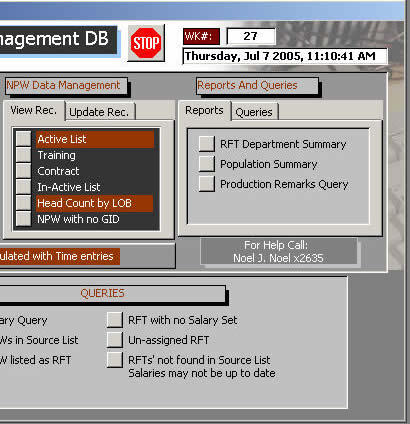
Creating a Clock on your Form


Microsoft Access Database Solutions: Create a working clock on your forms

Looking for that extra special effect to give your Microsoft Access database project a professional flair...Thought about adding a working clock to your Access forms?

To put a simple text clock on a form, create a Label called lblClock on the form, set the form's TimerInterval to 1000, and the following code behind the Timer Event.

You can also create two command buttons called cmdClockStart and cmdClockEnd and attach respective code to each to have the clock run on demand.


'***************** Code Start ***************
Private Sub Form_Timer()
Me!lblClock.Caption = Format(Now, "dddd, mmm d yyyy, hh:mm:ss AMPM")
End Sub

Private Sub cmdClockStart_Click()
Me.TimerInterval = 1000
End Sub

Private Sub cmdClockEnd_Click()
Me.TimerInterval = 0
End Sub
'***************** Code End ***************

Monday, July 04, 2005

How to eliminate white space in reports with CanShrink and code in Access 2002

Article ID : 299011
Last Review : June 23, 2005
Revision : 5.0
This article was previously published under Q299011
For a Microsoft Access 97 version of this article, see 95390.
Moderate: Requires basic macro, coding, and interoperability skills.

This article applies to a Microsoft Access database (.mdb) and to a Microsoft Access project (.adp).

For a Microsoft Access 2000 version of this article, see 210589.

SUMMARY

Before you print a form or a report, you can save space by conditionally reducing the size of the controls on the form or report. For example, you might want to reduce the size of text boxes that contain varied-length text, or reduce the size of text boxes bound to fields that could be empty.

Before you try to reduce the size of controls in reports, however, consider the following:
• Overlapping controls will not shrink, even when the CanShrink property is set to Yes.
• Controls shrink line by line (vertically). This means, for example, that if there is a group of controls placed on the left side of the page and a large control (for example, an OLE picture) on the right side of the page, the controls on the left side of the page will not shrink, unless the picture is blank and hidden.
• Space between controls is not affected by the CanShrink or CanGrow property.
• Controls located in the page header or page footer can shrink and grow. However, the sections do not have CanGrow and CanShrink properties. This means, you can still have blank space in a page header or page footer section (even though its controls may shrink).
Microsoft provides programming examples for illustration only, without warranty either expressed or implied. This includes, but is not limited to, the implied warranties of merchantability or fitness for a particular purpose. This article assumes that you are familiar with the programming language that is being demonstrated and with the tools that are used to create and to debug procedures. Microsoft support engineers can help explain the functionality of a particular procedure, but they will not modify these examples to provide added functionality or construct procedures to meet your specific requirements.

MORE INFORMATION

A control containing null information automatically shrinks to nothing and disappears when its CanShrink property is set to Yes, but the space between the controls is not affected by the CanShrink property.

For example, say you have 11 controls in a column of a report, and there is .1 inch of space between each control. Even if all 11 controls contain null information and all 11 have their CanShrink property set to Yes, the space between the controls adds up to 1 inch. When you print the report, even though the 11 controls are not printed, the first control that does contain text will be printed 1 inch lower than you might expect because of all the accumulated space.

A good way to manage the size of your controls is to have as few controls as possible. This will minimize the white space between the controls.

The following example demonstrates how to print mailing labels by using a Visual Basic function to minimize the number of controls and to give you even spacing. Say you want to create mailing labels containing a name, business name, address, city, state, and zip code. You could use several different fields, but it would be better to use a single text box, as in the following step-by-step example.

CAUTION: If you follow the steps in this example, you modify the sample database Northwind.mdb. You may want to back up the Northwind.mdb file and follow these steps on a copy of the database.

More info: http://support.microsoft.com/?kbid=299011

Wednesday, June 22, 2005

Goto Record Command in a Form

This command comes very handy when you want to process the record one by one or test single records against another table.

Private Sub Form_Open(Cancel As Integer)
Dim intNPWCount As Integer

Dim strNPWGID As String
Dim FName As String


FName
= Me.Form.Name
intNPWCount
= Nz(DCount("[MPGID]", "MPW_Weekly_TimeTracker", "[DeptID]='" & Forms![ManpowerOTPopulationF].[ComboDeptID] & "' And [WKNO]=" & Forms![ManpowerOTPopulationF].[TxtWKNO]), 0)


If intNPWCount <> 0 Then

For A = 1 To intNPWCount

DoCmd.GoToRecord acDataForm, FName, acGoTo, A

‘Other Commands

Next A

Else

Exit Sub

End If

End Sub

Tuesday, June 14, 2005

How do I log users off a database and keep them off?


The following provides a methodology to allow the developer to schedule and enforce periods of downtime for any number of databases.

Define a database, ie, TimeCtl. All users should have read access to the database, but must not be able to change/move/delete the database or anything within the database.
Define a table, tblLogOut on the TimeCtl database having the following fields per row.
--ApplicationName text(50) primary key
--LogoffStart date/time
--LogoffEnd datetime
--Inactive Boolean

you will have one row for every active database. The application name is the database name only without the mdb. It is not the full path name. For example, if you database is DrugCourt.mdb the applicationname on tblLogOut is DrugCourt.
LogoffStart is the date and time you want to insure that all users cannot access applicationname. LogoffEnd is the date and time the users can begin to use applicationname again.
If the inactive flag is true, the record will never be checked again. This allows you to keep a historical track of your scheduled down time.

In TimeCtl, create a module called gfunctions (global functions). Cut and paste the following function into gfunctions.


Public Function funShutDown(DatabaseName As String) As Boolean: funShutDown = False

Dim db As Database
Dim rs As Recordset
Dim strSQL As String

DatabaseName = UCase(DatabaseName)
Dim myDate As Date: myDate = Now()
strSQL = "SELECT * FROM TBLLOGOUT WHERE APPLICATIONNAME = '" _
& DatabaseName & "' AND INACTIVE = 0 AND #" & myDate & "# BETWEEN LOGOFFSTART AND LOGOFFEND"
Set db = CurrentDb
Set rs = db.OpenRecordset(strSQL, dbOpenDynaset)
If rs.RecordCount = 0 Then
GoTo OutShutDown
Else
funShutDown = True
End If

OutShutDown:
rs.Close
Set rs = Nothing
Set db = Nothing
Exit Function

End Function


WATCH OUT FOR WORD WRAP.

On each database that is now represented on tblogout, establish a reference to the timecontrol database. This will allow you to call funShutDown from that database.
Link tbllogout to your database. Again, we don’t care if the user can see this table as long as he can’t do anything else but see information.

In your application database create an unbound form with one textbox. Place the following code on the open form event.


Private Sub Form_Open(Cancel As Integer)

If funShutdown(UCase("drug court")) = True Then
Application.Quit
End If

End Sub

This insures that a user who attempts to log on during the scheduled down time will fail to do so.

Set the forms timer interval to 300000 (5 minutes). The following is the forms timer event.

Private Sub Form_Timer()

If funShutdown("drug court") = True Then
Application.Quit
End If

End Sub

In the startup routine of your database, open this form hidden.

Every 5 minutes, your database will test if it should shut down. If down time is scheduled it will shut down within 5 minutes of the downtime start time.

Reference: http://www.tek-tips.com/faqs.cfm?fid=2145

Thursday, June 02, 2005

Hide a table in Database Window

(Q) Can I hide a table so that it doesn't appear in the Database window?

(A) If you want to hide a table in the database windows so that other users can't select it, preface the table's name with 'Usys'. For example, if your table's name is employee, change it to UsysEmployee. This makes your table into a system object which access does not display. To see this table later, choose view, options, show system objects.

More Reference: The Access Web

Thursday, May 12, 2005


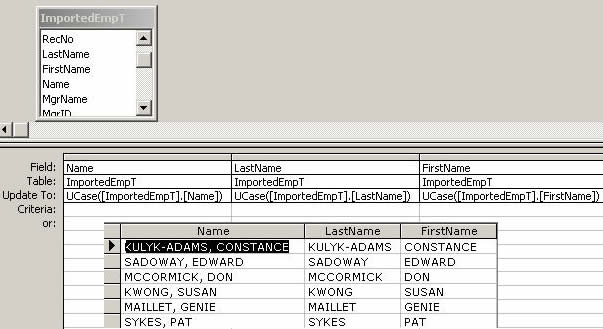
Upper Case Function in access: The upper case function of MS Access is done by issuing the prefix command UCase before the field you want to change into upper case. Posted by Hello

Friday, May 06, 2005

Removing Filter of a Form through VBA

Procedure for Preset Filters:

Private Sub CMDRemoveFilter_Click()
Me.Filter = ""
End Sub

Explanation:
Double quote removes the filter.

Monday, May 02, 2005

Filtering a Form through VBA

Procedure for Preset Filters:

Private Sub CMDNullSalaries_Click()

Dim strNull As String

strNull = "(([Salary Query Form].[HR Salary] Is Null))"

Me.Form.Filter = strNull

Me.FilterOn = True

End Sub

Explanation:

Form “Salary Query Form” will display only the Record of whose “HR Salary” field contains nothing.

Procedure for filters passed from a Combo List:

Private Sub CMDFilter_Click()

On Error GoTo Err_CMDFilter_Click

Dim vFilter As String

vFilter = Forms![Salary Query Form]![DeptFilterCombo]

Me.Filter = "DeptID = '" & vFilter & "'"

Me.FilterOn = True

Exit_CMDFilter_Click:

Exit Sub

Err_CMDFilter_Click:

MsgBox Err.Description

Resume Exit_CMDFilter_Click

End Sub

Explanation:

1. vFilter variable is declared.

2. vFilter variable takes the value from Forms![Salary Query Form]![DeptFilterCombo]

3. DeptID Field will then be filtered with the value from vFilter variable.

NOTE: If the variable contains string, then vFilter should be enclosed by single quote.

"DeptID = '" & vFilter & "'"

4. Declare Me.FilterOn as True. This is to activate filter.

Friday, April 29, 2005


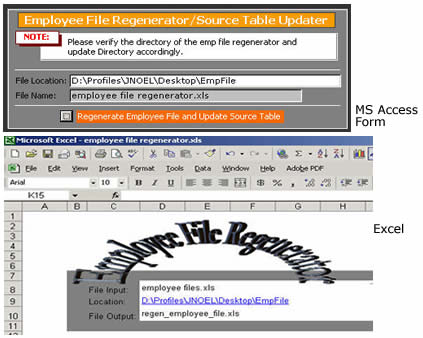
Passing Value from Access to Excel Range. The following blog will share to you how the File location directory will be passed to a Range in an Excel Spreadsheet. Posted by Hello

Passing Value from Access to Excel Range

Here is a simple way of passing a value from MS Access to an Excel File that is being opened by MS Access.

Situation: I have an MS Access Database form(A) which exports a query(B) to a certain directory as an excel file. This query is going to be used by an Excel Spreadsheet(C) which is preformatted for calculation and reporting. Now, as I open the preformatted Excel Spreadsheet(C) from Access(A) I would like to pass the directory location where I saved the query as xls (B) to SpreadSheet(C). This directory will be then used by Excel to know where to automatically pick-up the xls query(B) so that it can create pivot tables and other reports from (B).

(A) MS Access Form: This form has fields with directory location assigned as Me.DirLoc
(B) Query exported as XLS
(C) Preformatted XLS with loaded Macro to auto-fetch (B)

Private Sub CmdRunRegenerator_Click()
Dim DistDir
Dim ReportCreator As String

ReportCreator = Me.Regenerator
DestDir = Me.DIRLoc
Dim objXL As Object, x
On Error Resume Next
Set objXL = CreateObject("Excel.Application")
With objXL.Application
.Visible = True
'Open the Workbook
.Workbooks.Open DestDir & "\" & ReportCreator
'Include CARMA in menu, run AutoOpen
.ActiveWorkbook.RunAutoMacros xlAutoOpen
.ActiveWorkbook.Sheets("Sheet1").Range("D9").Value = Me.DIRLoc
x = .Run("RegenerateEmpFile")
.ActiveWorkbook.Save
.ActiveWorkbook.Close
objXL.Quit
'AccountsViewEngine
'Auto_Open
End With
Set objXL = Nothing
UpdateSource
ClearInputOutputFiles
MsgBox ("Update completed and imported xls file cleared.")
End Sub

NOTE: The line highlighted in red is the command to pass the value of the Directory location in the MS Access form to the spreadsheet being opened.